

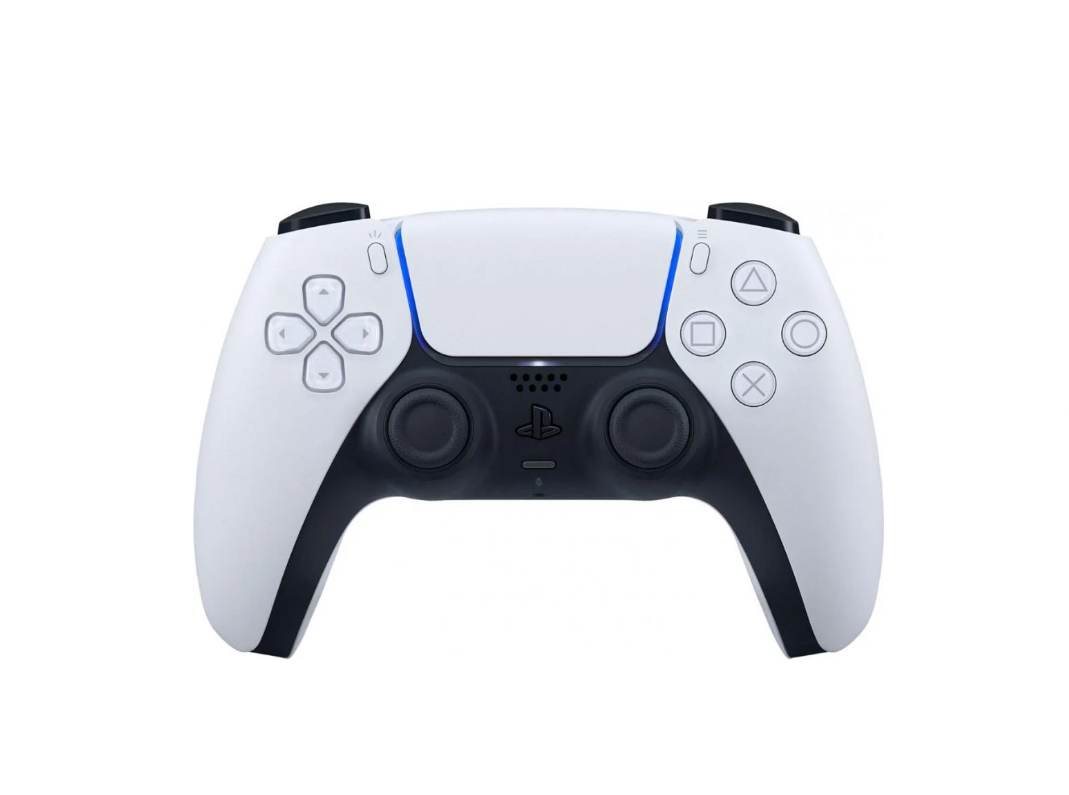

Transitioning from console to PC gaming often involves adapting to a mouse and keyboard. However, if you prefer using a controller, connecting your PS5 DualSense to your PC is straightforward.
This guide details the steps to connect your PS5 controller to a PC, ensuring a seamless gaming experience.
Wired Connection
The quickest method to connect a PS5 controller to a PC is using a USB-C to USB-A cable. This cable typically comes with the controller. For greater comfort and flexibility, a longer cable might be beneficial.
To establish a wired connection:

- Plug the USB-C end into the top of the PS5 controller.
- Connect the USB-A end to your PC.
Windows should recognize the controller automatically without any additional setup. Once connected, you can launch your preferred game and start playing.
Wireless Connection
For those who prefer a cable-free setup, or if a cable isn’t available, a wireless Bluetooth connection is an option, provided your PC has Bluetooth capabilities. If not, a Bluetooth adapter can be purchased to enable this feature.
To connect your controller wirelessly via Bluetooth:

- Open your PC’s settings.
- Navigate to “Bluetooth & Devices”.
- Select “Add Device”.
- Choose “Bluetooth”.
Next, prepare your controller for pairing by simultaneously holding down the PlayStation button and the Share button. The touchpad will begin flashing, indicating it is in pairing mode.
Your PC should then detect “Wireless Controller” as a new Bluetooth device. Select it to connect. Once the connection is established, the controller is ready for use.
Simple Setup
Connecting a PS5 controller to a PC is a simple process, regardless of whether you choose a wired or wireless method. Both options require minimal effort and time, allowing you to quickly get back to your games.
