

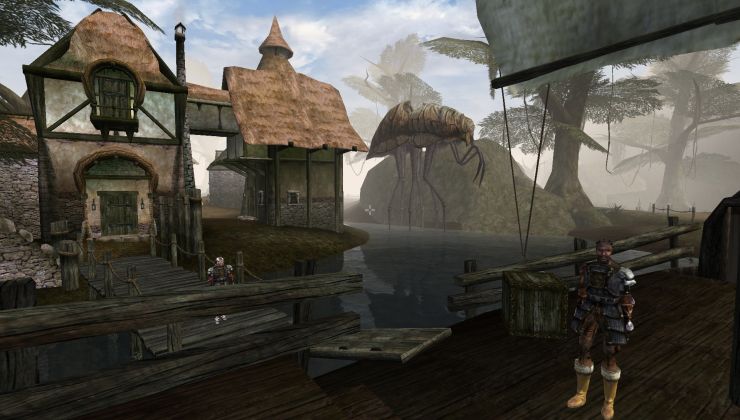
OpenMW offers the optimal experience for playing Morrowind on modern operating systems. This guide details the installation process for Linux, SteamOS, and Steam Deck.
For SteamOS and Steam Deck users, these instructions require Desktop Mode. The guide primarily focuses on installations involving Steam, but the methods are compatible with any Linux distribution supporting Flatpak. For information on installing games from GOG on Linux systems, refer to a separate guide.
Option 1: Flathub / Flatpak Installation
Before proceeding with this method, ensure Morrowind is already installed via Steam on your primary drive.
The Flathub installation is often the most straightforward. OpenMW can be installed through Flathub, accessible via the Discover application on KDE Plasma/SteamOS or the Software application on GNOME.
Important: To update OpenMW or any other Flatpak application, you must return to Discover to initiate the updates.
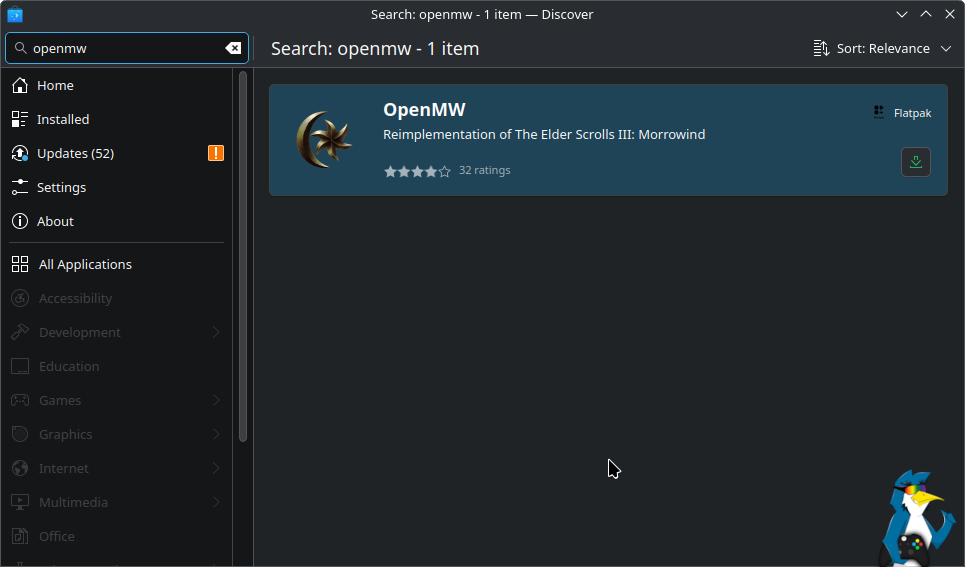
Alternatively, use the terminal for installation:
flatpak install flathub org.openmw.OpenMW
After installation, OpenMW will appear in your application launcher (often referred to as the “Start Menu” in Windows contexts).
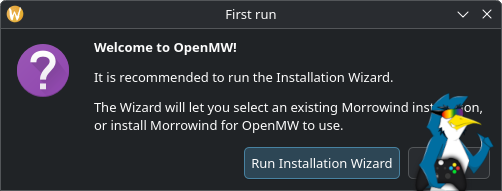
Upon the initial launch, you will need to direct OpenMW to your existing Morrowind installation. Select “Run Installation Wizard” to begin the process of locating your downloaded game files.
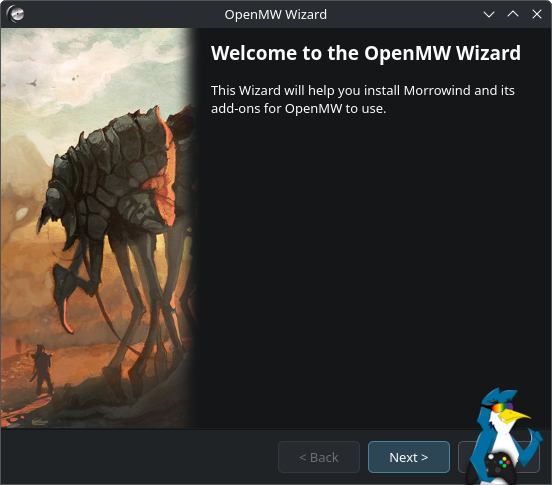
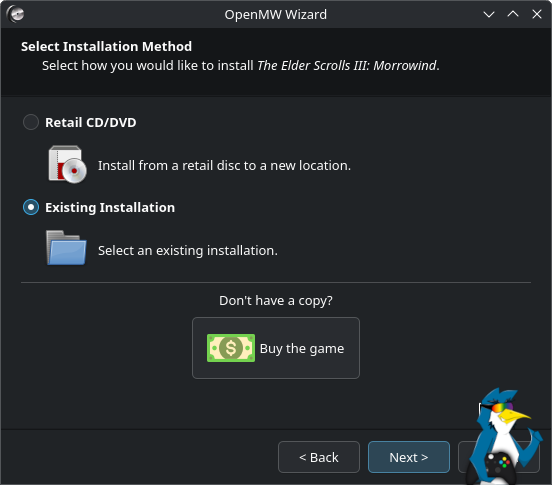
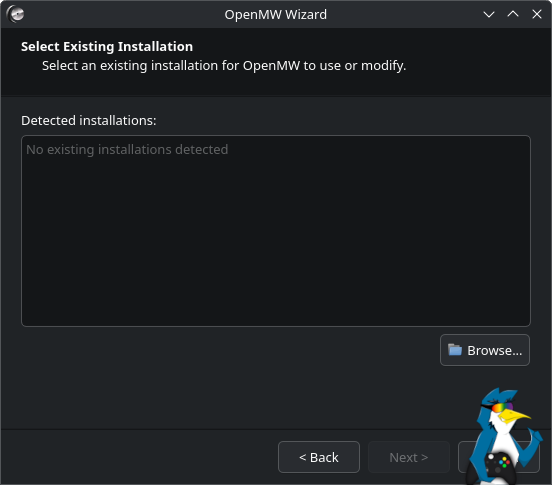
Select “Existing Installation” and then “Next”. Since OpenMW may not automatically detect the installation path on Linux, click “Browse” on the subsequent screen. This allows for manual navigation to your Morrowind installation directory.
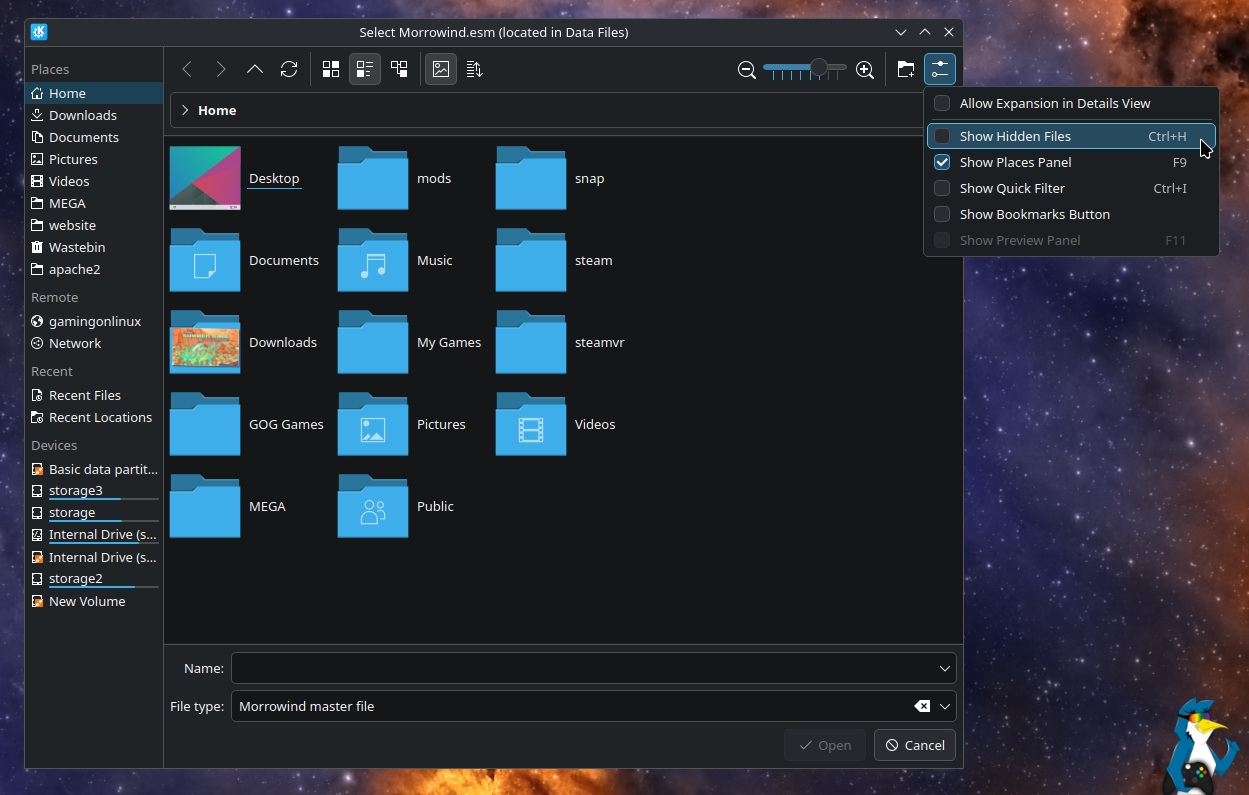
The primary Steam folder is typically hidden. To reveal its contents within your Home folder, press CTRL+H (common shortcut) or, in the KDE Plasma file picker, access the settings button in the top left and select “Show Hidden Files.”
Navigate to the “.steam” folder and then proceed to this path:
/.steam/root/steamapps/common/Morrowind/Data Files/
Within this directory, locate and select the “Morrowind.esm” master file.
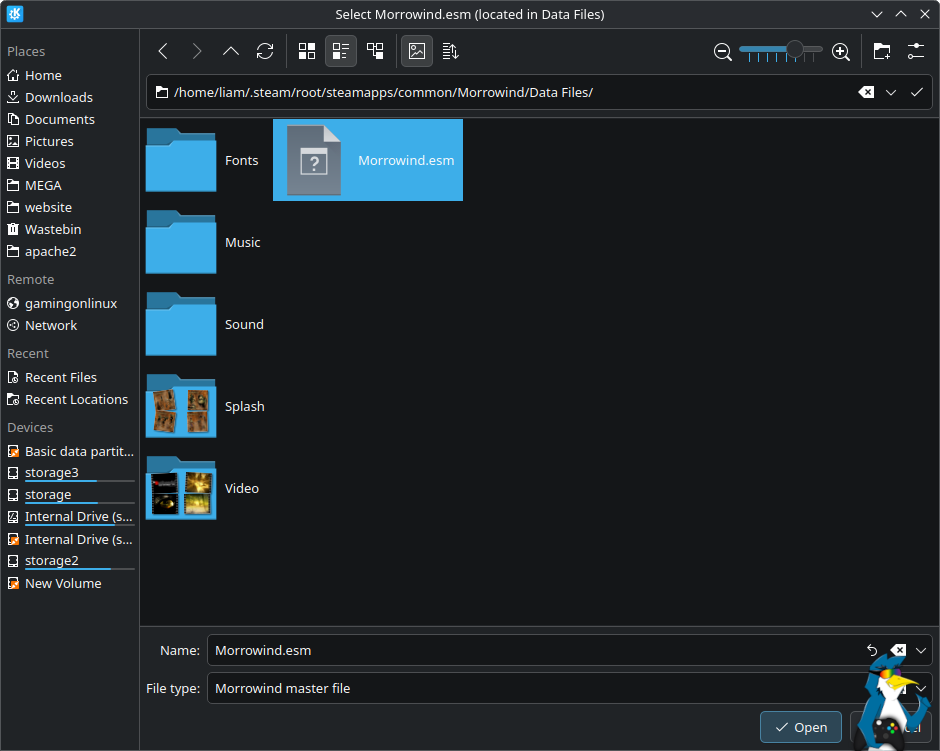
After selecting the file and clicking “Open,” OpenMW will be configured to utilize all necessary data files from your Morrowind installation. Continue by clicking “Next” through the remaining wizard steps until completion.
The OpenMW launcher will then appear, providing access to all required settings.
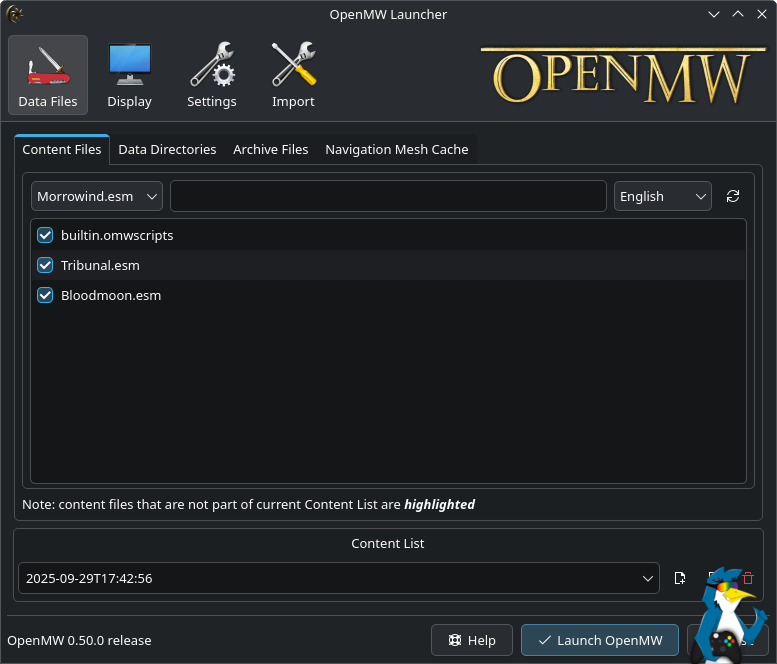
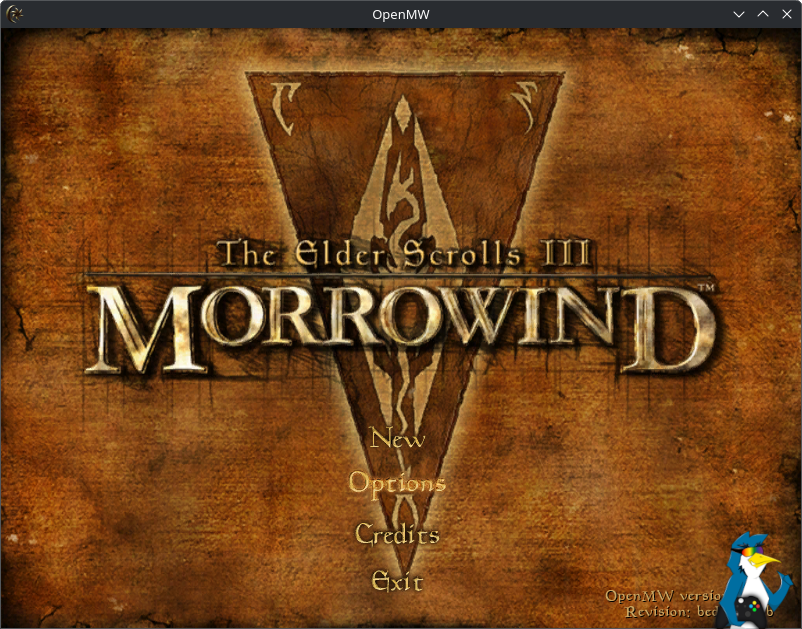
From here, simply click “Launch Open” to start the game.
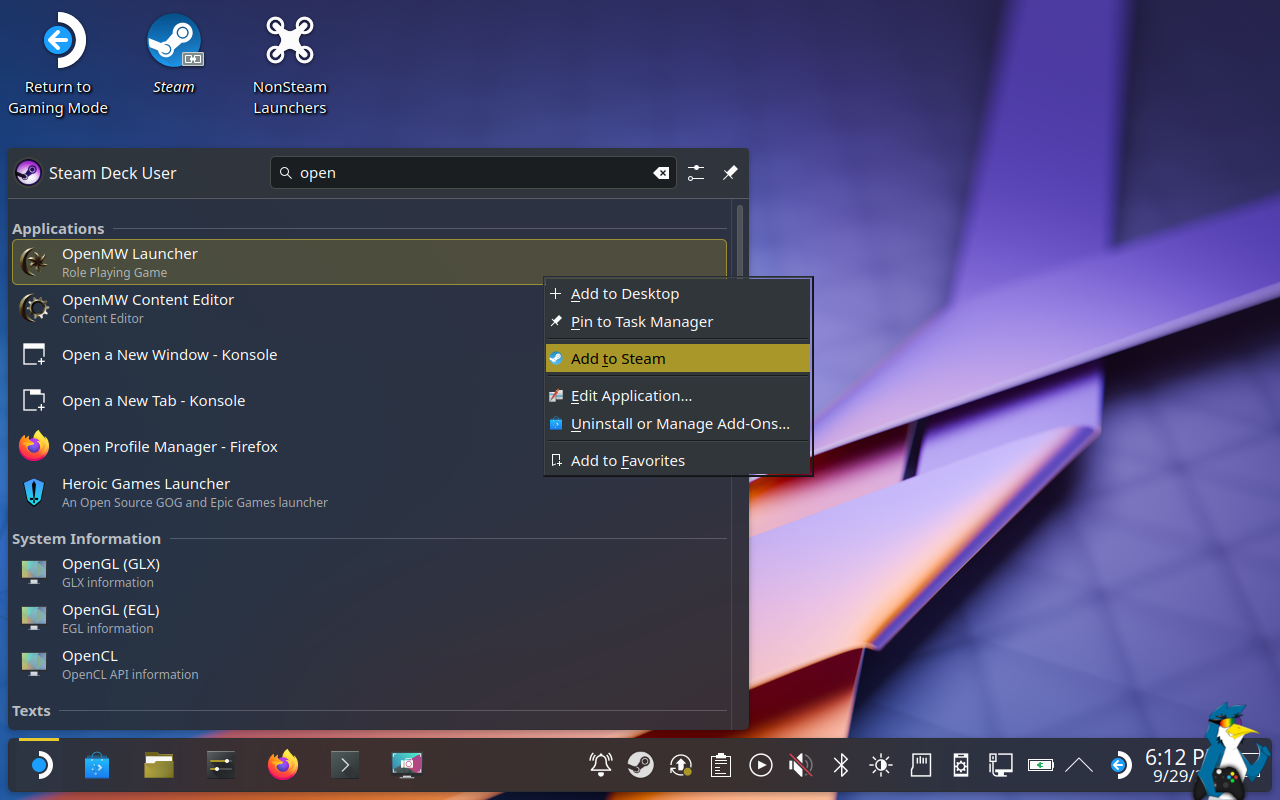
For easier access on SteamOS and Steam Deck, the OpenMW installation can be added to your Steam library.
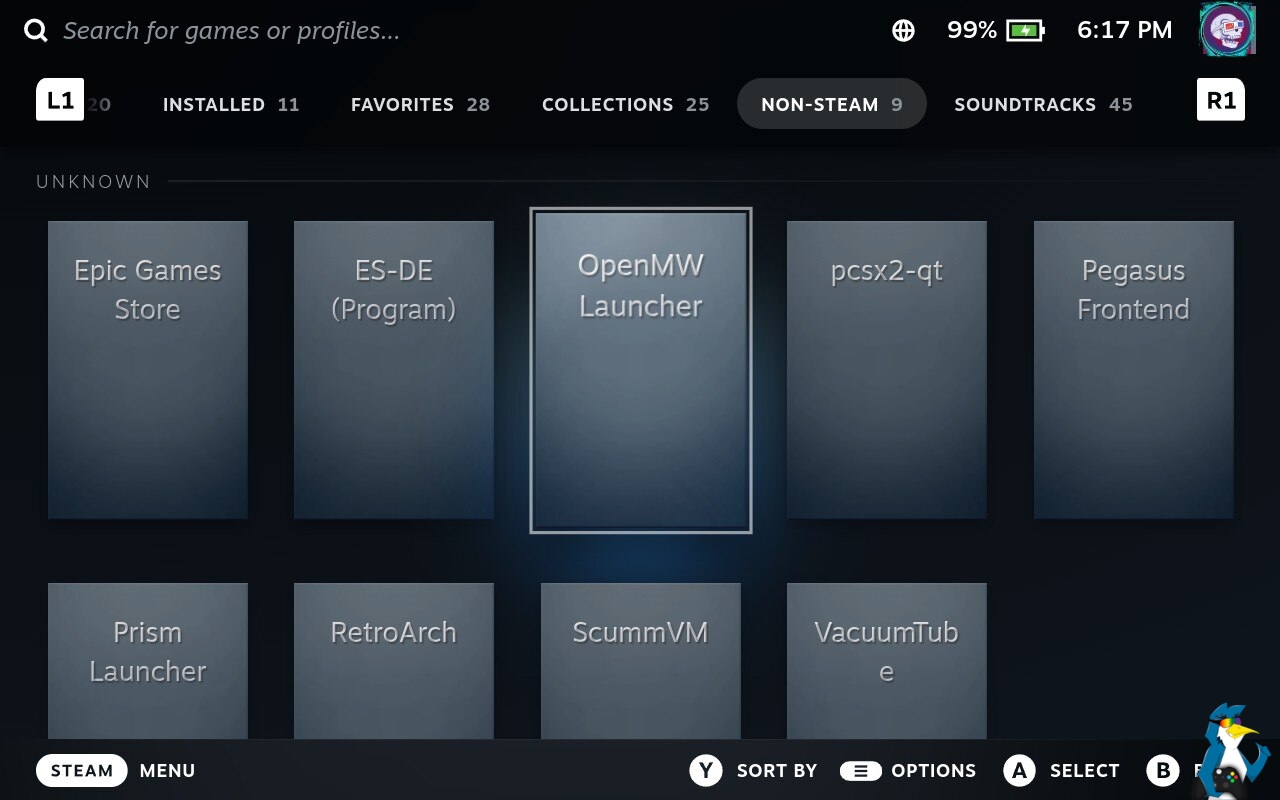
It will then be listed in the “Non-Steam” section of your Steam Library when in Gaming Mode on SteamOS.
On other Linux distributions, OpenMW can be added to Steam using the “Add a Game” option located in the bottom left corner of the Steam client.
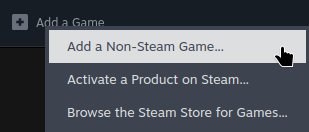
Scroll down to locate and select the OpenMW Launcher.
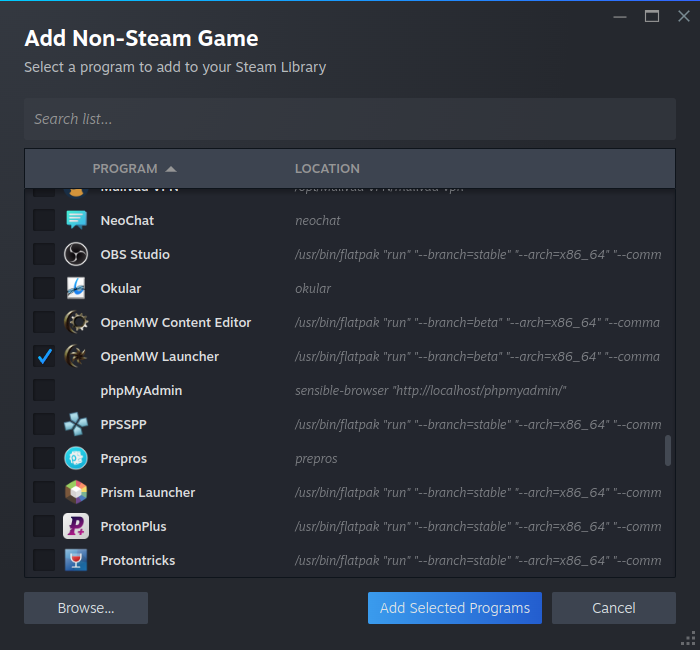
Click “Add Selected Programs” to include it in your Steam list.
Option 2: Using Luxtorpeda
With this method, Morrowind does not need to be installed beforehand; its installation will occur later. This approach also ensures Steam accurately tracks your playtime.
An alternative method involves Luxtorpeda, a tool that enables downloading native Linux versions of Steam games from external sources, such as OpenMW for Morrowind. Luxtorpeda supports a variety of titles.
The initial steps are similar to Option 1, beginning with the installation of ProtonUp-Qt from your software store, such as Discover on KDE Plasma/SteamOS.
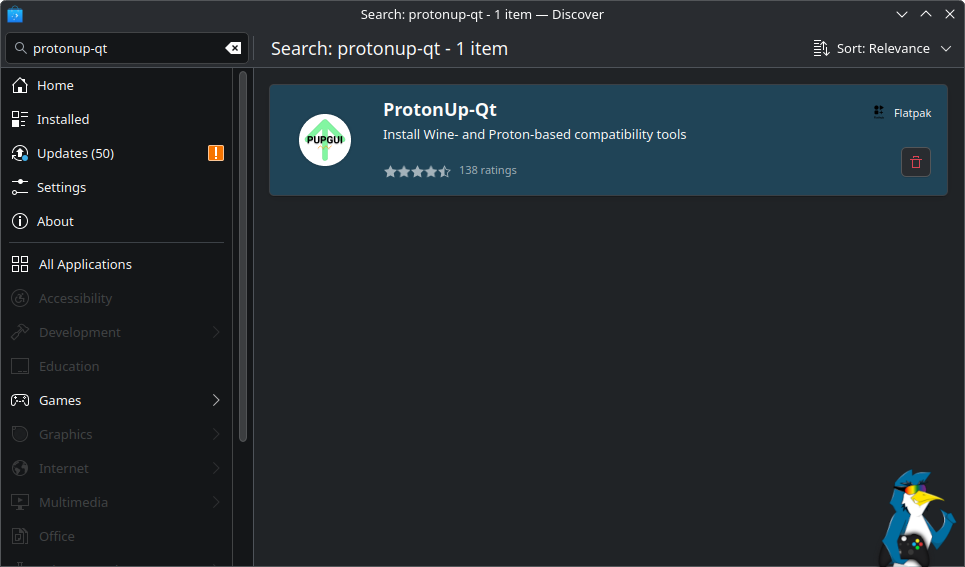
For terminal installation:
flatpak install flathub net.davidotek.pupgui2
Once installed, launch ProtonUp-Qt from your application launcher (the “Start Menu” equivalent).
Within ProtonUp-Qt, select “Add version.” On the subsequent screen, click the top drop-down box and choose Luxtorpeda.
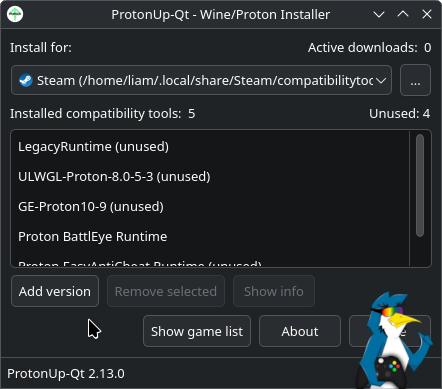
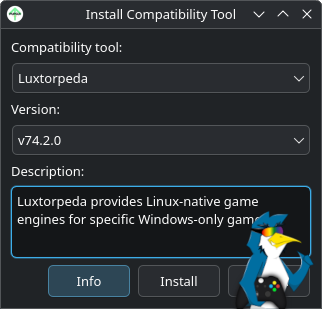
Click “Install,” allow the setup to complete, then close ProtonUp-Qt. It is essential to close and reopen Steam afterward for it to recognize Luxtorpeda.
With Steam restarted, access Morrowind’s Properties menu. Navigate to the Compatibility tab, check the box, and select Luxtorpeda from the options.
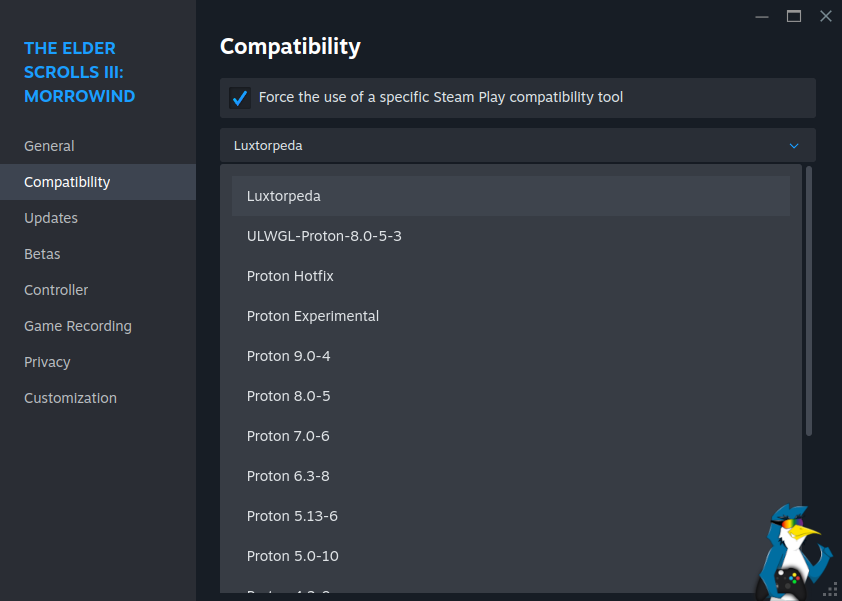
After selecting Luxtorpeda, close the properties menu and proceed to install Morrowind. Upon launching the game, Luxtorpeda will automatically acquire and configure OpenMW, integrating it seamlessly into your Steam library for direct launch.
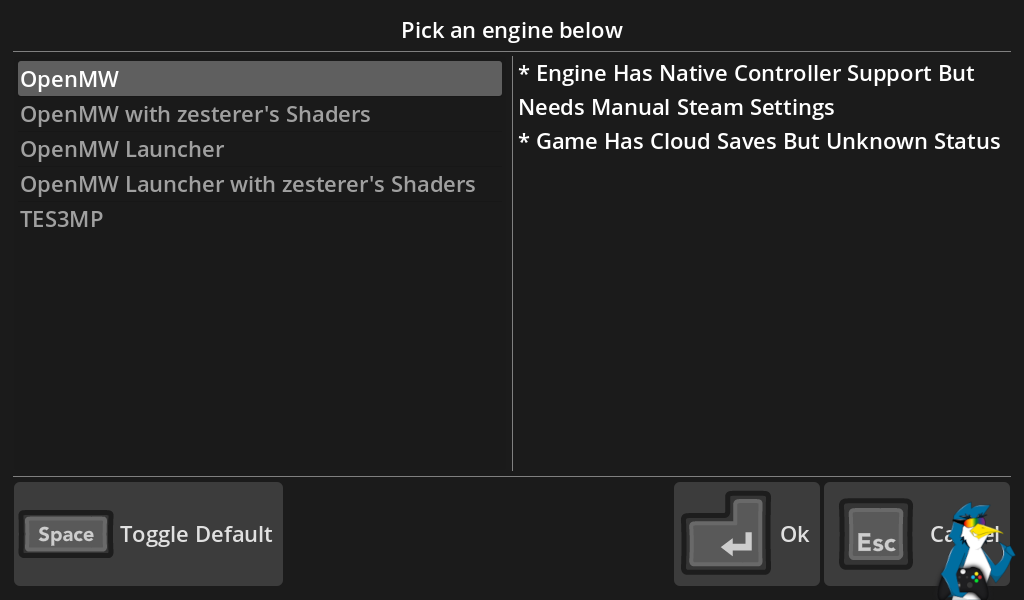
The initial launch will present the Luxtorpeda engine selection. Choose OpenMW (typically the top option) to initiate its installation. This method eliminates the need for manual file location.
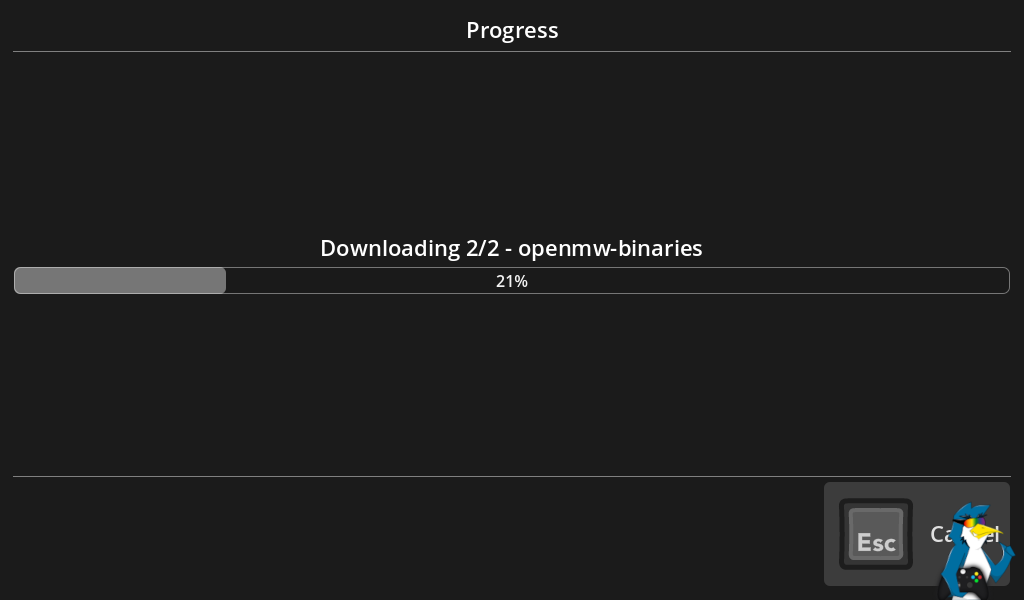
Once the necessary components are downloaded, the game will launch automatically.
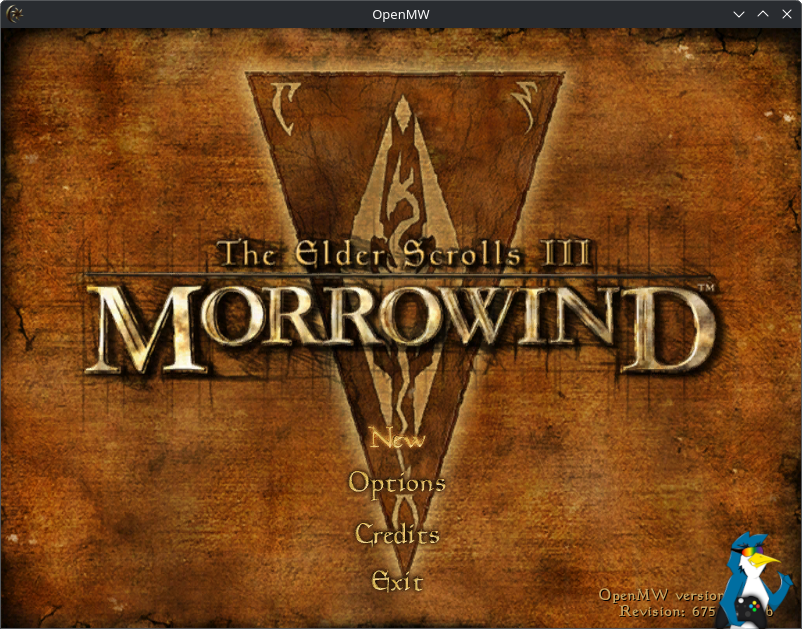
When launching Morrowind via Luxtorpeda, a prompt will appear asking to select an engine. Always choose OpenMW (the top option) to load the game as shown above. If adjustments to other settings are required, select “OpenMW Launcher” to access its configuration options first.
