

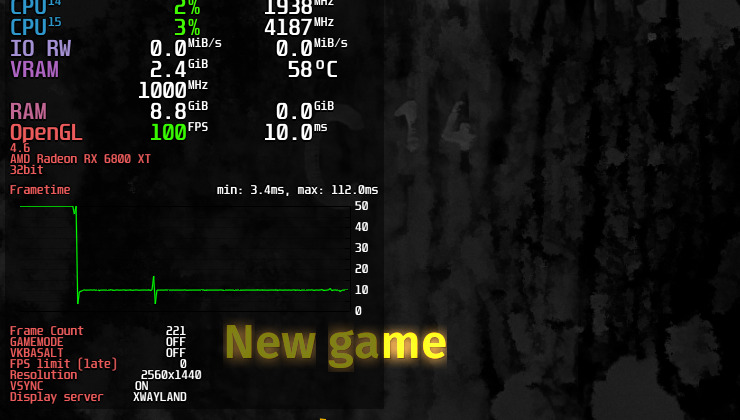
MangoHud offers a robust performance overlay for Vulkan and OpenGL games on Linux, providing real-time monitoring of metrics like FPS, temperatures, and CPU/GPU load.
What is it?
While many performance monitoring tools exist for Windows, MangoHud stands out as a premier open-source and highly customizable solution for Linux. Although Steam recently introduced new performance monitoring features, many are currently Windows-exclusive. MangoHud offers broader compatibility, functioning both inside and outside of Steam, and provides extensive configuration options.
By default, MangoHud appears on top of games as shown:

The overlay can be expanded to display additional details, as illustrated:

How to install it?
Installation is straightforward for most scenarios. The most current version can be obtained from the GitHub page, specifically from its Releases section. This method ensures access to the latest version, irrespective of the Linux distribution in use. For example, using the Version 0.8.1 release, locate and download “MangoHud-0.8.1.r0.gfea4292.tar.gz” from the Assets. After downloading, extract the .tar.gz archive. The extracted folder will contain files similar to these:

Open a terminal within this folder and execute the following command: ./mangohud-setup.sh install
This command installs MangoHud, making it ready for use with its default configuration, which resembles the initial image shown. While some Linux distributions offer MangoHud packages in their repositories, these may not always be up-to-date, and installation procedures vary. The described method provides a universal installation approach.
How to use it?
Steam Games
Integrating MangoHud with Steam games is straightforward. Navigate to a game in your Steam library, right-click it, select ‘Properties’, and locate the ‘Launch Options’ text box. Input the following command: mangohud %command%
An example is provided in the screenshot:

Heroic Games Launcher
With Heroic Games Launcher (AppImage) version 2.17.2 or newer, enable MangoHud by clicking the settings button for a game and checking the dedicated MangoHud box.

Lutris
For Lutris, another widely used Linux game launcher, enable MangoHud by selecting a game, right-clicking it, and choosing ‘Configure’. In the ‘System Options’ tab, activate the ‘FPS Counter (MangoHud)’ slider button.

Customizing MangoHud
Customizing MangoHud is straightforward, utilizing plain text configuration files located in `~/.config/MangoHud/` (your home directory). The primary file, `MangoHud.conf`, allows users to enable or disable various options.
For instance, a horizontal layout that positions the overlay neatly at the top of the screen can be achieved as shown:

To implement this layout, add the following lines to your MangoHud.conf file:
horizontal
legacy_layout=0
hud_no_margin
font_size=25
table_columns=25
background_alpha=0.5
gpu_stats
gpu_temp
cpu_stats
cpu_temp
ram
vram
fps
frame_timing
frametime
toggle_hud=F8
vulkan_driver
text_outline
text_outline_thickness=2
custom_text=GamingOnLinux
resolution
display_server
version
MangoHud also supports application-specific configuration files. Placing a `MangoHud.conf` file in the same directory as a game will prioritize that specific configuration for that application.
What about Flatpak?
Using MangoHud with Flatpak applications introduces specific considerations. It requires installing the Flatpak version of MangoHud to ensure compatibility with Flatpak games and applications: flatpak install org.freedesktop.Platform.VulkanLayer.MangoHud
For users running the Flatpak version of Steam, MangoHud can be globally enabled with the following command: flatpak override –user –env=MANGOHUD=1 com.valvesoftware.Steam
