

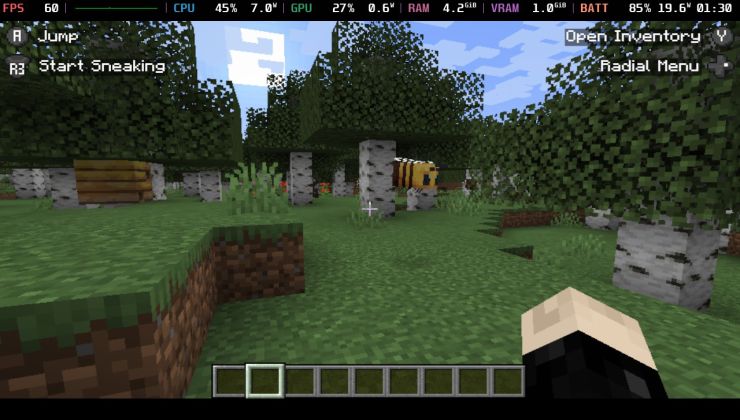
Minecraft Java Edition has long supported Linux, making its setup on Steam Deck and SteamOS relatively simple. This guide details the process for correct installation and enabling controller support.
Despite its popularity, Minecraft Java Edition lacks native controller support. To address this, modding is necessary. Fortunately, the extensive Minecraft community offers numerous mods, simplifying this process.
The initial steps of this guide align with general instructions for installing software on SteamOS and Steam Deck. For on-screen keyboard access on Steam Deck, press STEAM + X.
Get to Desktop Mode
Begin by booting your Steam Deck or SteamOS device into Desktop Mode. On a Steam Deck, this option is available within the Power menu.

Alternatively, holding the power button will display a similar menu.

A shortcut labeled “Return to Gaming Mode” will be present on the Desktop for easy return to the Steam Gaming Mode interface.
Load up Discover
In Desktop Mode, locate and open the Discover application. This can be done by clicking the bottom-left button to access the desktop menu.

The Discover application might also be visible as a blue shopping bag icon on the bottom bar.
Install Prism Launcher
With Discover open, search for and install Prism Launcher.
Prism Launcher is a user-friendly, free, and open-source Minecraft launcher that includes built-in modding capabilities.


Upon launching Prism Launcher, users will encounter language and theme selection screens, followed by a prompt to add a Microsoft Account. This linking process, essential for playing Minecraft, can be completed via the SteamOS browser or by scanning a QR code.

Once the account is linked, Minecraft installation can proceed. The Prism Launcher will display a blank interface, ready for new instances.

Install Minecraft inside Prism Launcher
This section covers installing Minecraft alongside the Controlify mod, which provides comprehensive controller support for Minecraft Java Edition.
Click Add Instance in the top-left of Prism Launcher. For this guide, Minecraft Java Edition version 1.21.4 (the current latest) will be used. Naming the instance is optional but can be helpful for managing multiple mod installations.

Mod Setup For Controller Support
After adding the instance to Prism Launcher, select it and click the Edit button on the right side of the launcher.
The subsequent steps involve integrating controller support.

Clicking Edit will open the settings screen.
From this screen, select Version on the left panel, then click Install Loader on the right. A mod loader is essential for mods to function.

This action will display the mod loader installation screen.
Select Fabric from the left panel, choose the latest version, and click Ok.

After installation, select Mods from the left panel to access the Mods screen.
Click Download Mods on the right side.
Ensure Modrinth is selected, then type Controlify into the search bar. Select the mod, click “Select mod for download,” review the download list, and confirm by clicking Ok.


Upon completion, the Mods screen will display the installed mod.

Add To Steam
The initial launch will involve downloading Minecraft and initializing mods, which may take some time. However, it is crucial not to launch it at this stage. Proper controller support requires returning to Gaming Mode.
First, add Prism Launcher to Steam.
Open the desktop launcher by clicking the bottom-left button, navigate to Games, find Prism Launcher, right-click it, and select “Add to Steam.”

Back To Gaming Mode
Close all applications and return to Gaming Mode using the shortcut located in the top-left of the desktop.
In Gaming Mode, open the Steam Library, navigate to the Non-Steam section, and launch Prism Launcher.

Upon opening, controller input will not function within the Prism Launcher interface.
To navigate, hold the STEAM button, use the Right Thumbpad for mouse input, and double-click the desired Minecraft instance with the Right Trigger.

Allow time for Minecraft to load in the background; the launcher may remain visible for a couple of minutes before the game appears.
An initial prompt for downloading an extra helper library will appear. Hold the STEAM button, use the Right Thumbpad for navigation, and press the Right Trigger to select Yes.

Following this, a download will occur, and a controller calibration prompt will appear (use the same control method).
Once calibration is complete, full controller support will be enabled, along with appropriate on-screen icons, enhancing the Minecraft experience on Steam Deck and SteamOS.


Auto-load A Minecraft Instance
To configure Prism Launcher to automatically load a specific Minecraft instance, such as the 1.21.4 installation, two methods are available.
Option 1
In Desktop Mode, open Prism Launcher, select your Minecraft instance, and click “Create Shortcut” on the right panel. The shortcut will automatically use the instance’s name.


Save the shortcut to your Desktop, then right-click it and select “Add to Steam.”

The shortcut will then appear in the Non-Steam section of your Steam Library in Gaming Mode.

Option 2
Alternatively, modify the Steam Launch Option for Prism Launcher.
From the Prism Launcher page in your Steam Library, access Properties (the cog icon), then locate the Launch Options text box. Append the following to the existing text:
–launch [instance name]
Exclude the brackets.

If no custom name was assigned, the instance’s version number will be used by default.
To load Prism Launcher normally after this, the added Launch Option must be removed.
