
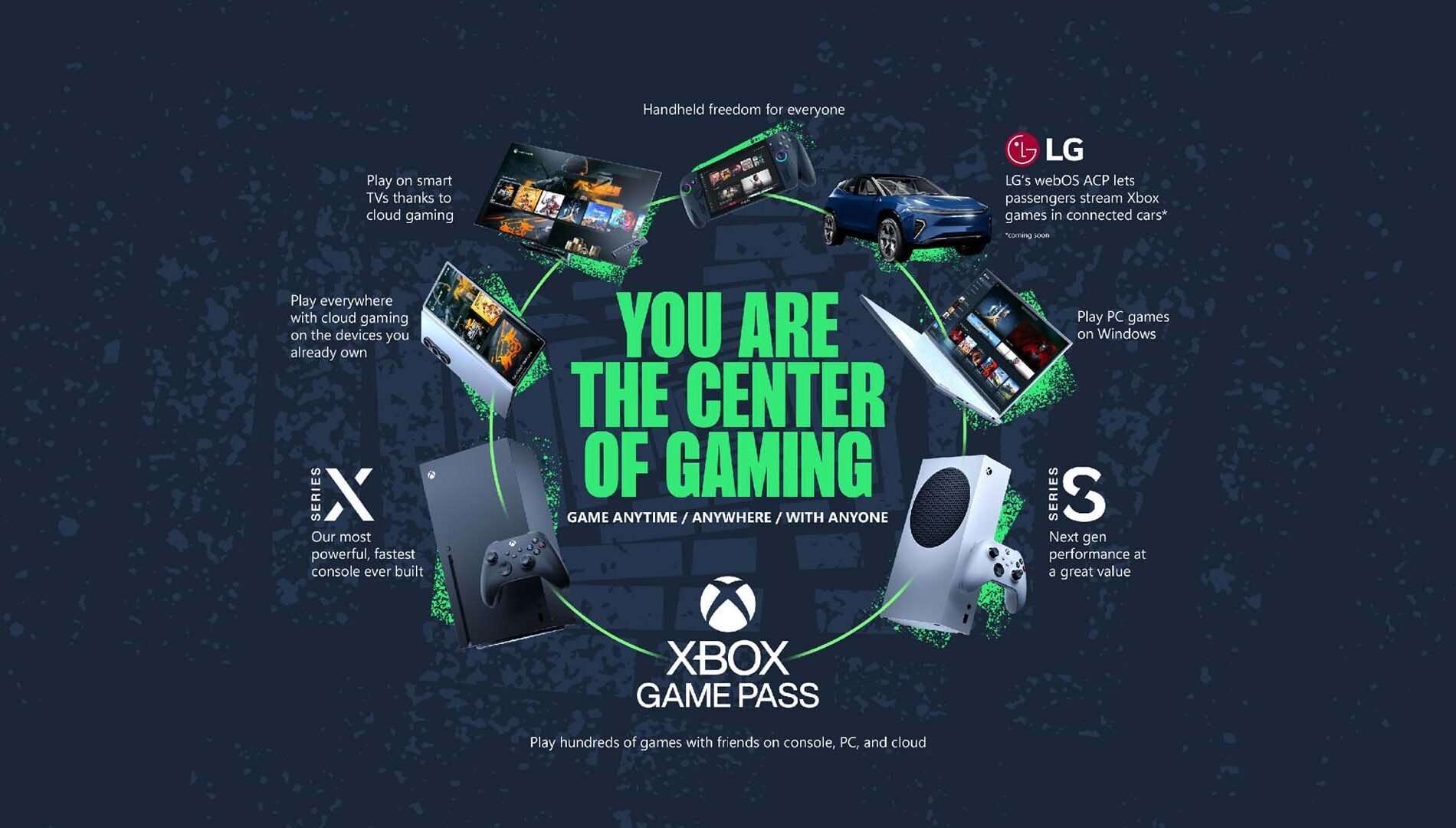
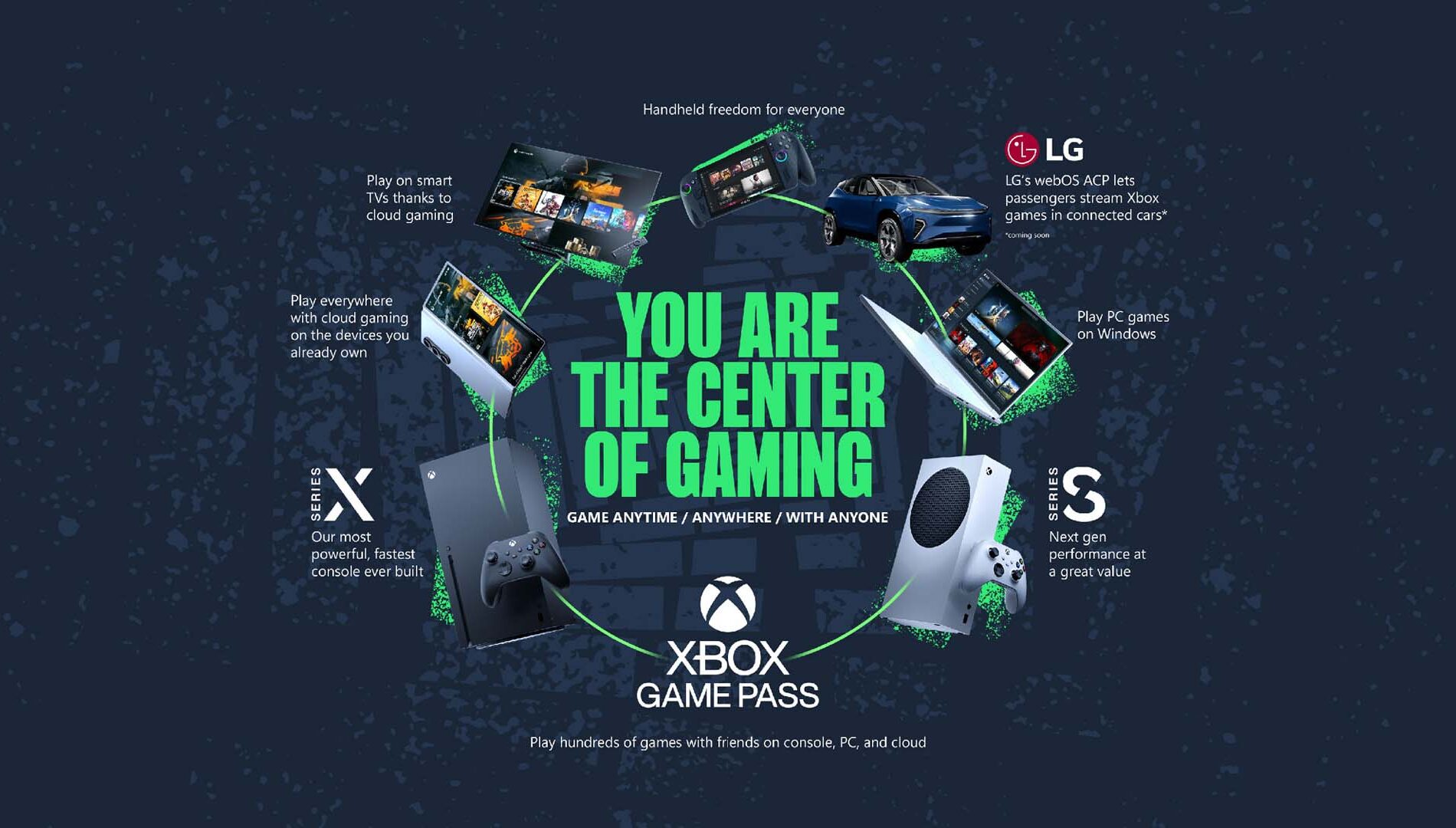
Experience gaming in a new dimension with Xbox Cloud Gaming, a powerful addition to your console and PC setup. Access an extensive and evolving collection of top-tier games on any compatible screen, provided you have a reliable internet connection and a qualifying Xbox Game Pass subscription.
Now fully released from its beta phase, Xbox Cloud Gaming is integrated with Xbox Game Pass Essential, Premium, and Ultimate subscriptions, simplifying cloud streaming access. Global cloud gaming hours have seen a significant 45% increase over the past year as the service expanded to millions of new players, with notable adoption in regions like Argentina and Brazil.
This guide will walk you through the necessary steps and requirements to begin playing, most of which you likely already possess.
What is Xbox Cloud Gaming?
Xbox Cloud Gaming is a feature available with most Game Pass subscriptions, enabling you to play games on various internet-connected devices such as PCs, TVs, and smartphones. It functions similarly to streaming video content, allowing you to play games directly through apps or web browsers on your existing devices, with support for a wide range of controllers and input methods.
What You Will Need
Xbox Game Pass
Unlimited cloud gaming is a perk of Xbox Game Pass Essential, Premium, and Ultimate plans. Xbox Game Pass is a monthly subscription service that grants access to an expanding catalog of games, online multiplayer, in-game bonuses for popular titles like League of Legends and Call of Duty: Warzone, store discounts, and more, depending on the plan. Beyond streaming, Game Pass titles can also be downloaded for offline enjoyment on your console, PC, or handheld device.
Xbox Game Pass Essential provides unlimited cloud gaming starting at $10 per month and includes over 50 games. Xbox Game Pass Premium builds on Essential by adding access to over 200 games across console, PC, and other supported devices for $14.99 monthly. For the most comprehensive experience, Xbox Game Pass Ultimate offers unlimited cloud gaming, a library of over 400 games for console, PC, and more, new titles available on day one, online console multiplayer, plus benefits like EA Play, Fortnite Crew, Ubisoft+ Classics, in-game extras for Riot titles, and Xbox Rewards, all included.
Supported Platforms
Xbox Cloud Gaming is currently compatible with the following devices (additional details are available here):
- Xbox Consoles – Xbox One and newer models. Streaming games to a console can be useful for testing a game before downloading or playing newer Xbox Series X titles on an older Xbox One.
- Windows PCs – Requires Windows 10 version 20H2 or later.
- Mac Computers – Requires MacOS 14.1.2 or later.
- Windows Handhelds – Includes devices like the ROG Xbox Ally, ROG Xbox Ally X, Logitech G Cloud, and Razer Edge.
- Steam Deck
- Android Phones and Tablets – Requires Android OS 12.0 or later.
- Apple Phones and Tablets – Requires iOS 14.4 or later.
- Smart TVs and Streaming Devices – Such as those from LG, Samsung, and Amazon Fire.
- Meta Quest VR – Includes Meta Quest 2, Meta Quest Pro, Meta Quest 3, and Meta Quest 3S.
- Cars – Expected soon! Learn more.
Internet Connection
For an optimal cloud gaming experience, a minimum internet connection speed of 20 Mbps is recommended. You can verify your connection speed using free online tools like Speedtest.net, Fast.com, or MeasurementLab.
Whenever possible, a wired Ethernet connection is preferable. However, playing via 5 GHz Wi-Fi or 5G is also feasible with compatible devices. If your wireless router supports both 5 GHz and 2.4 GHz bands, ensure your device is configured to connect exclusively to the 5 GHz network.
Controller
Most games necessitate a connected gamepad, whether wired or wireless. Xbox Cloud Gaming supports a broad spectrum of contemporary game controllers, allowing you to utilize your existing hardware. This includes official Xbox controllers, those from partner manufacturers, and a variety of third-party options from brands like 8BitDo, GameSir, Backbone, and even Sony’s DualSense.
A comprehensive list of supported controller manufacturers can be found here.
Additionally, many games can be played using a mouse and keyboard or touch controls on devices that support these input methods.
For those seeking a personalized gaming aesthetic, the Xbox Design Lab offers a selection of custom-designed and branded controllers.
Supported Regions
Xbox Cloud Gaming is available in an expanding list of 29 countries worldwide, with India being the latest addition. To confirm if your region is supported, you can check here.
What You Can Play
Xbox Game Pass
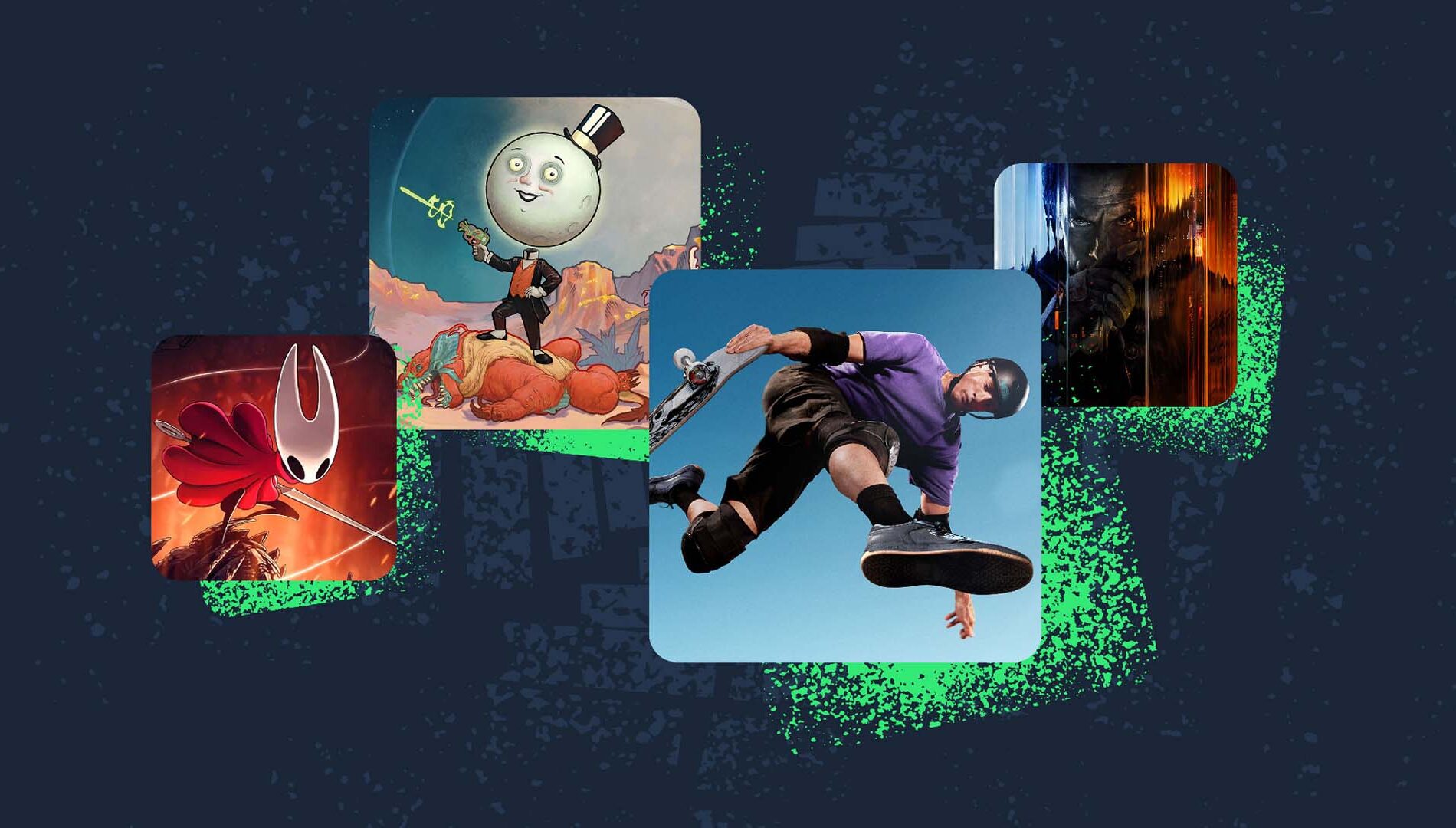
The Xbox Game Pass library features hundreds of games across numerous genres, from independent titles to major AAA productions. Currently, over two-thirds of these games are available for cloud streaming, with more being added regularly.
Subscribers to Game Pass Ultimate also gain access to EA Play and Ubisoft+ Classics, expanding the selection of cloud-streamable games from these publishers.
Stream Your Own Games
Many games not part of Game Pass can still be streamed if you own them, allowing you to play your purchased titles in the cloud. Your game progress syncs across all platforms, enabling you to continue your games seamlessly wherever you are. View the complete list.
How to Get Started
Your options for playing with Xbox Cloud Gaming primarily involve using either a dedicated app or a web browser. Both methods deliver the same gaming experience.
App
On consoles, accessing cloud-enabled games is as simple as navigating to your library and Game Pass section. For other supported devices, you may need to download the Xbox app from their respective app stores if it’s not already installed. Once opened, sign in to access your game library.
Browser
For devices running Android, MacOS, and iOS, cloud streaming is accessible via a web browser. Ensure your browser is up-to-date and supported here. Then, go to Xbox.com/play, log in, and begin streaming. To facilitate quicker access, you can use the Menu button and select Add to Home Screen.
On Steam Deck, you’ll need to access desktop mode and install Microsoft Edge; detailed instructions are provided in the link above.
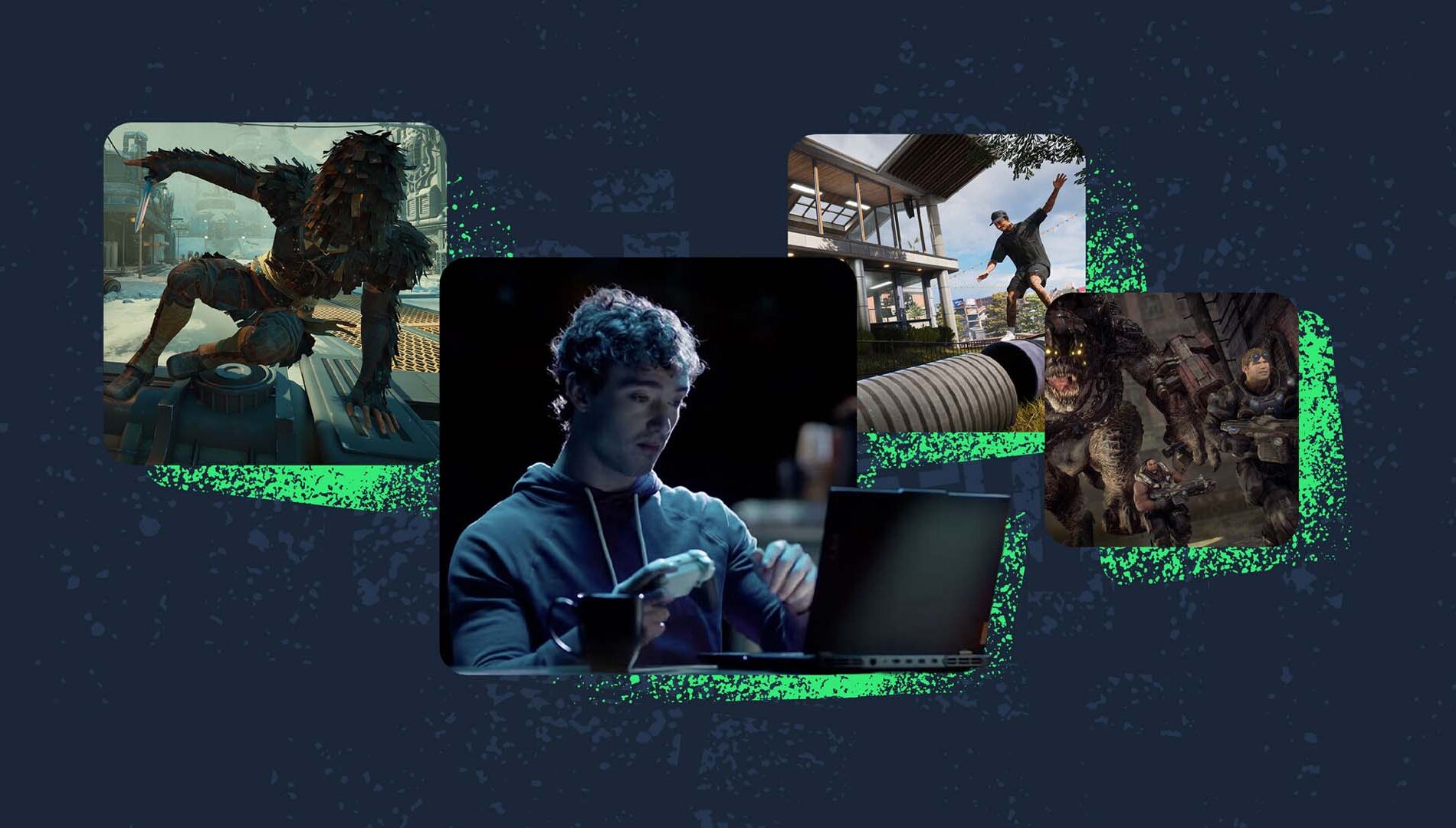
See You in the Cloud
This guide covers the essentials for starting with Xbox Cloud Gaming. For further assistance, consult the comprehensive support pages. Otherwise, it’s time to explore the available game library at Xbox.com/play and dive into your next gaming adventure.
Happy gaming!
