

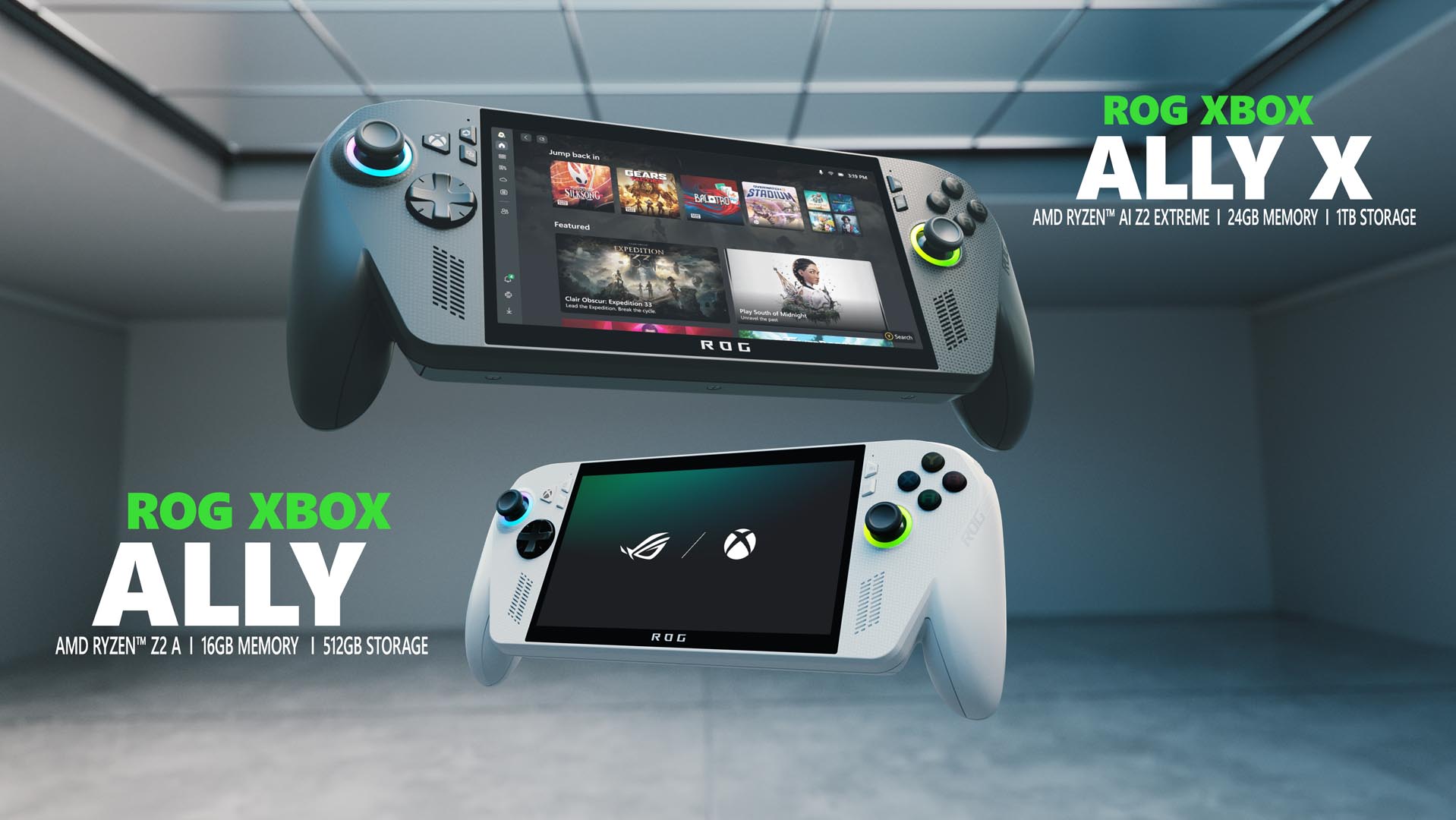
Acquiring a new ROG Xbox Ally or ROG Xbox Ally X opens up a world of portable gaming. This guide offers essential tips to help users quickly get started with their new handheld device. Whether new to handheld gaming or a seasoned player, the ROG Xbox Ally provides the flexibility of Windows and the power of Xbox in a portable format. While the primary goal is often to jump into favorite games, these devices also offer extensive customization options for the gaming experience.
For initial device setup, consult the detailed guide at Xbox Support. It is recommended to set up the fingerprint reader for quick and secure device unlocking. After setup, the device boots directly into an immersive, full-screen Xbox gaming experience.
Here are some helpful pointers to begin.
Navigating the Xbox Ally
Mastering Menus: Users can navigate the Xbox Ally using various input methods, including the d-pad, joysticks, shoulder and face buttons, or the touchscreen. For example, to access the Game Bar settings menu, press the Xbox button and the right bumper, or swipe from the left edge of the screen. To switch between applications, long-press the Xbox button or swipe up from the bottom to open the Task Switcher.
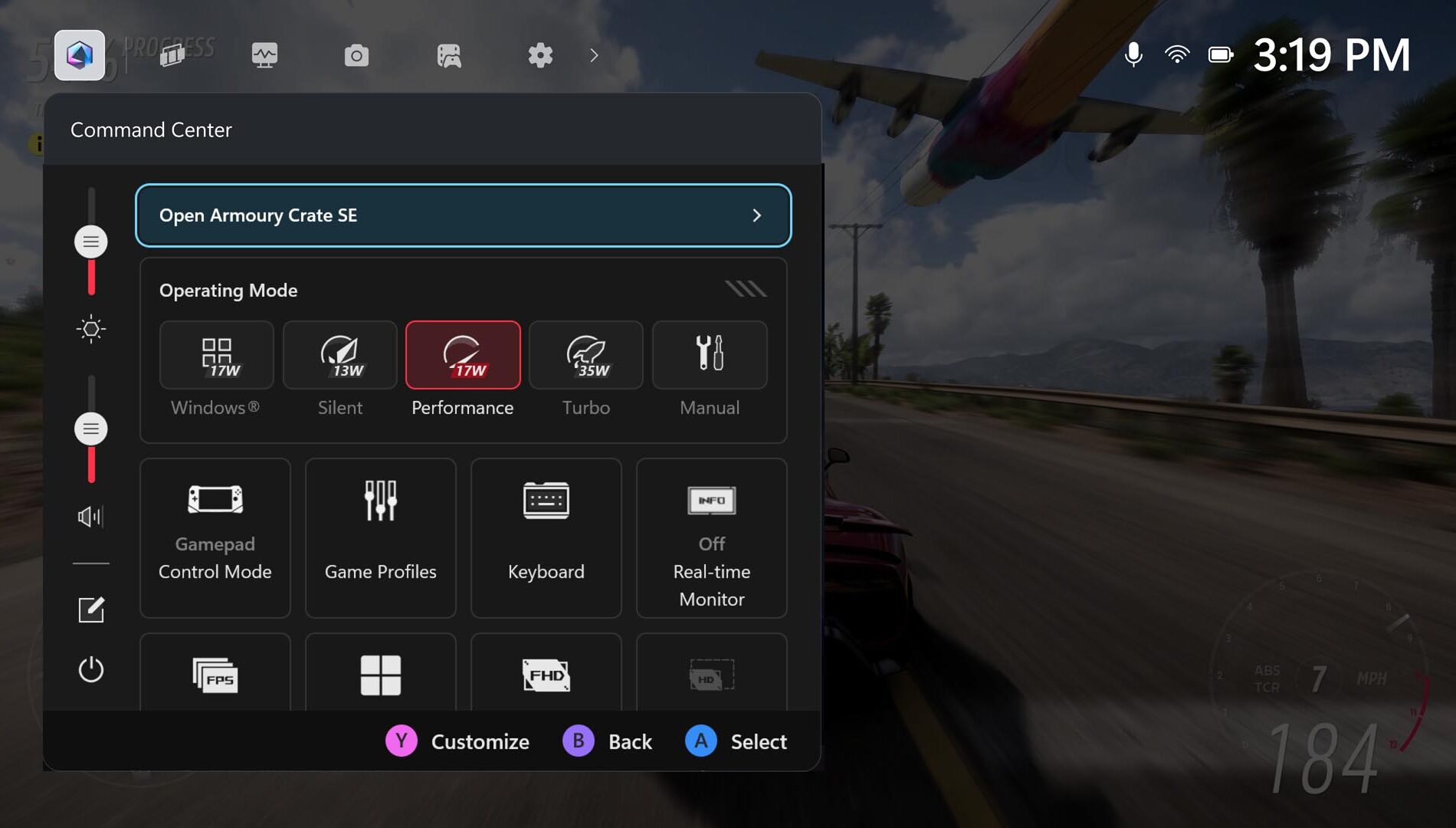
Familiarize with Command Center: The ASUS Command Center is integrated into Game Bar, providing immediate access to advanced features for personalizing the gaming experience. For more extensive settings and customization, Armoury Crate SE can be launched directly from this overlay.
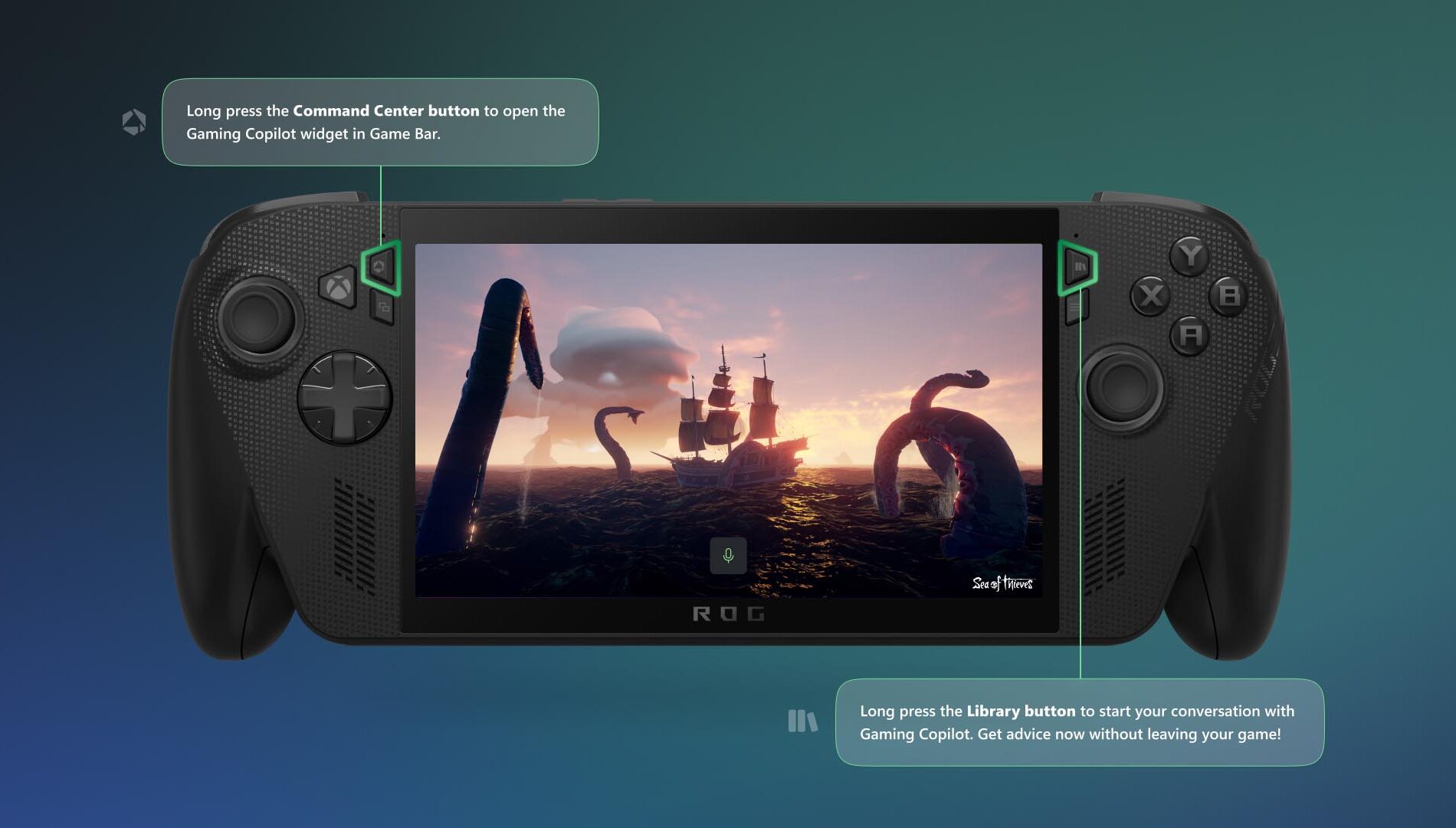
Introducing Gaming Copilot (Beta): Gaming Copilot is available on the Xbox Ally, offering recommendations, tips, and insights. To activate it, long-press the Command Center button to open the Gaming Copilot widget in Game Bar and complete the initial setup. To check achievements or get boss fight advice without exiting a game, long-press and release the Library button to start a conversation with Gaming Copilot.
Play What You Want
Browsing the Games Library: To find games, press the dedicated Library button above the right thumbstick. This section displays owned games, titles available through Game Pass, and games playable via Xbox Cloud Gaming. Multiple categories can be selected simultaneously; for instance, highlighting “Owned” and “Installable” helps locate games compatible with the Xbox Ally. The Store is also accessible on the left rail for discovering new titles.
Accessing Games from PC Storefronts: The aggregated gaming library allows users to add titles from various PC storefronts, consolidating all games in one location. Navigate to the “My Apps” tab in the Library and select the desired PC storefront for installation. If a specific launcher is not listed, open Edge (found in “My Apps”), visit the store’s website, and download it.
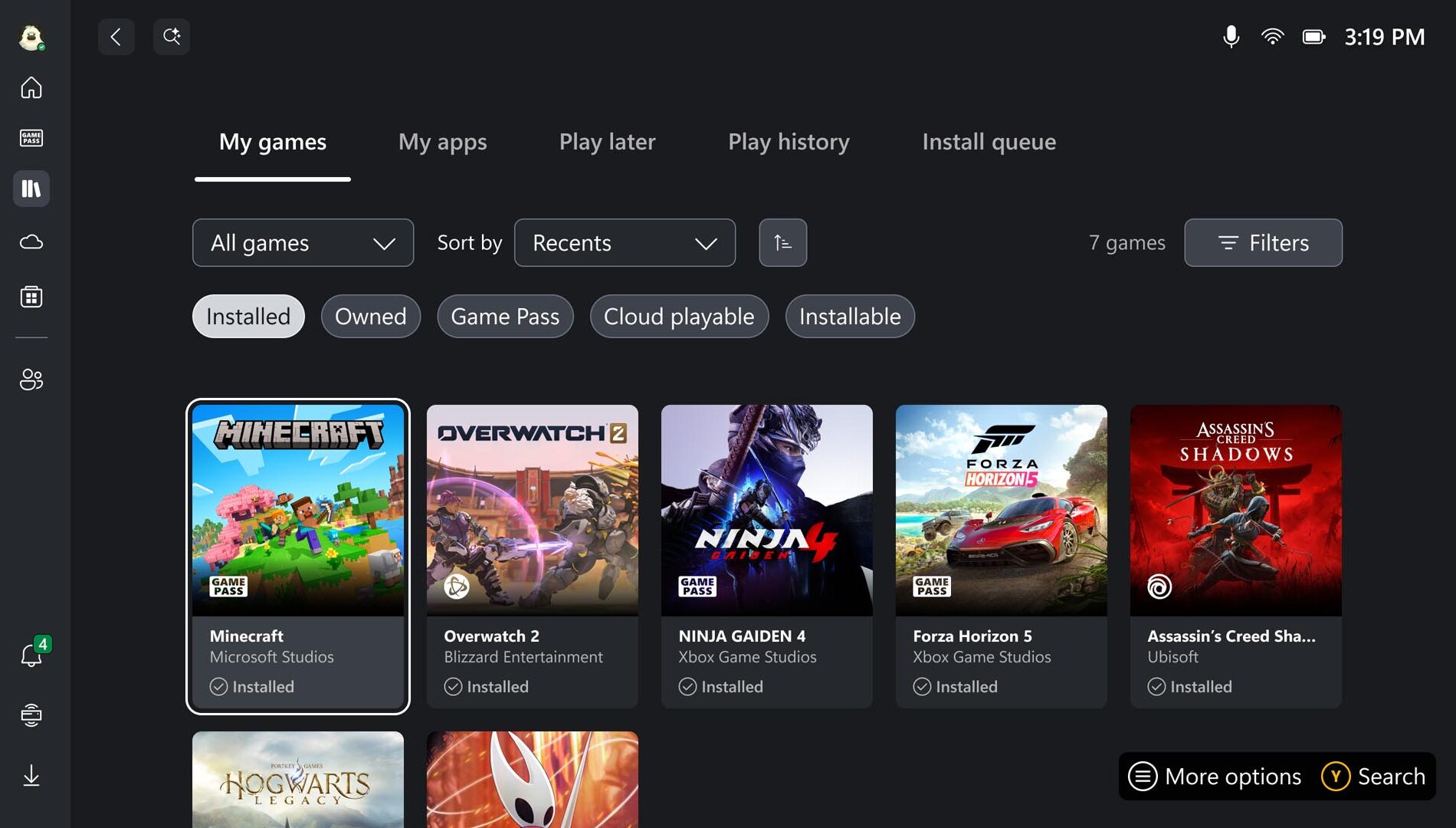
Playing Anywhere, Including Offline: The portability of the Xbox Ally means gaming can occur in locations without Wi-Fi. While many games benefit from an online connection, most single-player titles function well offline. Before traveling, it is advisable to test games offline, pre-download updates or DLC, and ensure the user is signed in. For comprehensive offline setup instructions, refer to the guide: Play games in offline mode on Windows | Xbox Support. When flying, activating airplane mode can conserve battery and prevent interruptions.
Personalizing the Setup
Utilizing Accessibility Features: The Xbox Ally and Xbox Ally X offer an optimized Xbox experience and Game Bar for handheld use, incorporating accessibility features from Xbox consoles and Windows 11 PCs. Visual, cognitive, and sensory accessibility options are typically located by selecting the Profile & Settings icon in the upper left, then navigating to Settings and Accessibility. Input-related accessibility settings, such as the on-screen keyboard, input customizations, and button re-mapping, are managed within Armoury Crate SE.
Connecting External Controllers: Xbox Wireless Controllers can be paired with the Xbox Ally similarly to a PC. Power on the controller, hold the Pair button, and watch for the connection notification. If missed, open Game Bar, go to Settings > Bluetooth > Manage devices, select Add device > Bluetooth, and follow the instructions. The Xbox Ally packaging includes a paperboard stand under the box lid, useful for holding the device during charging or when using an external controller, ensuring the screen remains unobstructed. This stand complements the next feature:
Docking for a Larger Screen: The Xbox Ally serves as a portable gaming device and offers expanded play options at home. Connecting it to an external monitor or TV for a larger, more immersive experience is straightforward. Simply connect the Xbox Ally directly to a display or to a dock via its USB-C port. For best performance, selecting “Second Screen Only” is recommended to match the TV’s resolution and refresh rate.
Customizing Joystick Ring Lights: The distinctive colorful lights around the Xbox Ally’s thumbsticks can be adjusted. Users may wish to dim or disable them, for example, during a night flight or in a dark environment. These settings are found in Armoury Crate SE under the “Lighting” section, where pulse patterns can be altered or the lights can be turned off completely.
Staying Up-to-Date: The Xbox Ally continuously evolves with updates. Recent enhancements to the ROG Xbox Ally handheld experience include Default Game Profiles (Preview), which automatically optimize frame rate and power consumption for 40 supported games, and Game Save Sync Indicators, providing real-time confirmation of cloud save uploads. These and other improvements aim to deliver a smoother, faster, and more reliable experience. Xbox and ASUS plan to introduce further features and functionalities. To ensure the device always has the latest updates, users should periodically check two locations:
- Open Game Bar > Settings Widget > More Settings > Open Windows Settings > Windows Update.
- Install all available updates and restart the device as prompted.
- Open the Command Center.
- Select “Open Armoury Crate SE.”
- Navigate to Update Center > Check for Updates > Update All.
These tips aim to help users maximize their experience with the new Xbox Ally or Xbox Ally X, whether gaming at home or on the move.
