

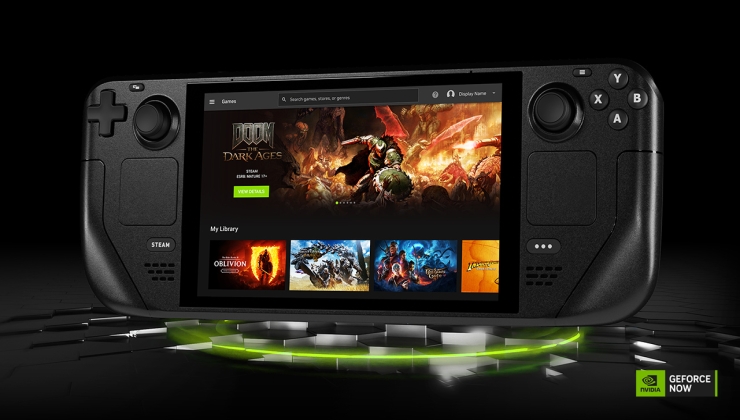
This guide provides straightforward instructions for installing and running NVIDIA GeForce NOW on Steam Deck and SteamOS.
A dedicated application for Steam Deck is now officially available from NVIDIA, removing the need to use a web browser. However, the application is not found directly on Steam and requires navigating SteamOS Desktop Mode for installation.
Begin by switching to Desktop Mode. Access the STEAM menu button, select Power, then choose Switch to Desktop.


In Desktop Mode, open a web browser such as Firefox or Chrome. Navigate to the official NVIDIA GeForce NOW download page and locate the dedicated Steam Deck download option.

The download will place a file named “GeForceNOWSetup.bin” in the Downloads folder. Double-click this file, select Execute, then Continue to launch the installer. Steam may close temporarily during the installation process as the shortcut is created.


Following installation, the system may automatically load into Big Picture Mode within Desktop Mode. This can be exited to return to Desktop Mode, and then to Gaming Mode.
The GeForce NOW application will appear in the Non-Steam section of the Steam Library.


Before launching the application, it is recommended to adjust Steam Input settings. Configuring the Right Thumbpad to function as a Mouse with Left Mouse Click capability will improve usability, particularly during the login process. Access these settings by tapping the controller icon located on the right side of the GeForce NOW app page within Steam.
Choose Edit Layout, navigate to Trackpads, and configure the Right Trackpad Behaviour to Mouse and its Click action to Left Mouse Click.


The GeForce Menu can be accessed by a long press on the Start / Menu button, as NVIDIA has pre-configured this functionality, requiring no further adjustments.
For quick access to the Performance Statistics Overlay, consider assigning a dedicated button. While it can be toggled through the GeForce NOW menu, a direct assignment streamlines the process.
One suggested method is to assign this function to a back button, such as L4. Navigate to Buttons, scroll to L4, and select “Add command” (if empty). Assign the keyboard “CTRL” key to this button.


Next, add a Sub Command to simulate pressing two keys simultaneously. Select the settings cog icon next to L4, choose “Add sub command”, and then assign the keyboard “N” key. This completes the setup for the performance overlay shortcut.


With these steps completed, the NVIDIA GeForce NOW application on Steam Deck and SteamOS is ready for use.


