


Understanding how to modify the Proton version for games is essential, especially given the variety of available versions. This guide explains the process.
Changing the Proton version can be beneficial because certain versions often perform better with specific games. For instance, Proton Experimental frequently incorporates fixes faster than the stable numbered releases, which can be crucial for newer titles or those with specific issues. While Valve typically recommends the optimal Proton version, manual adjustment is sometimes necessary.
Important Warnings: Repeatedly switching Proton versions can sometimes trigger DRM systems like Denuvo, potentially locking a user out of a game for a day. Additionally, if a game lacks cloud save functionality, changing Proton versions might lead to save data loss.
Steam Deck / SteamOS
On SteamOS, Proton versions can be changed directly within Gaming Mode.
To begin, select the desired game from the Steam Library. Navigate to the small cog icon and then choose the “Properties” menu.
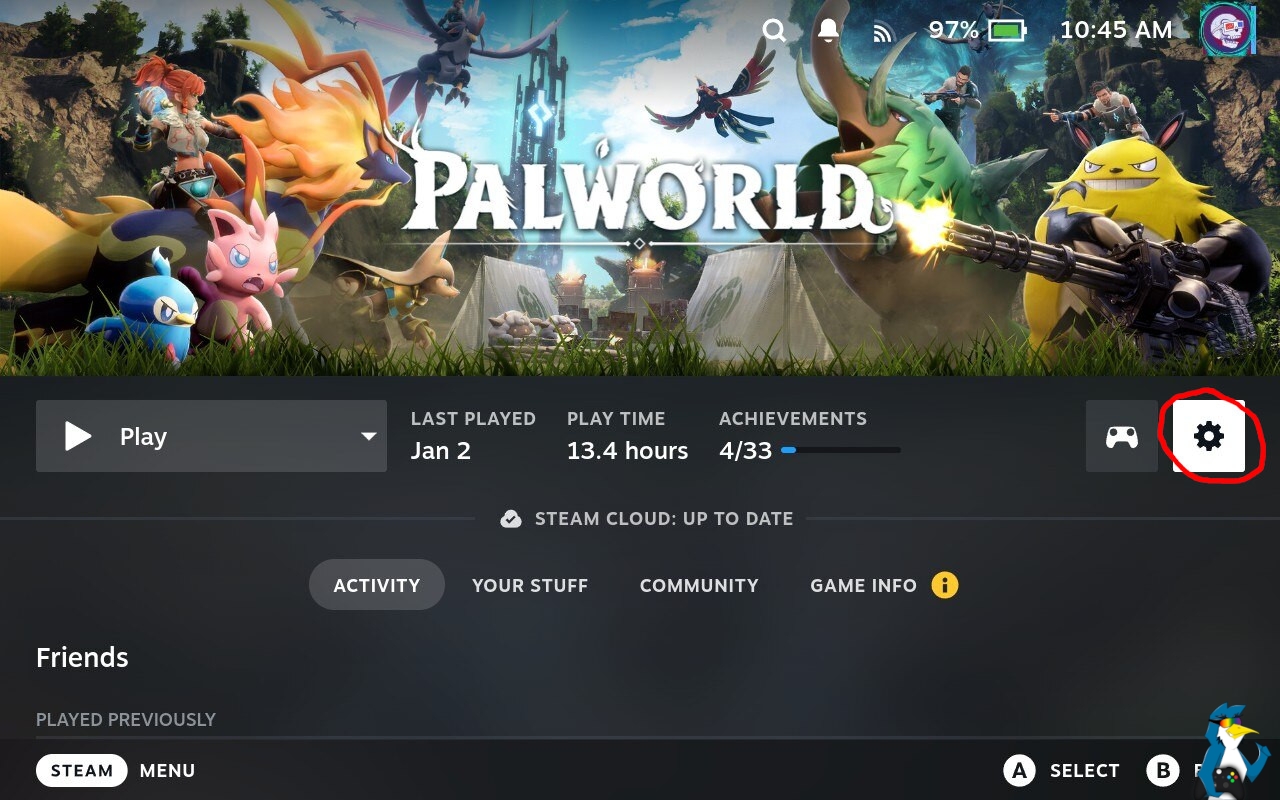
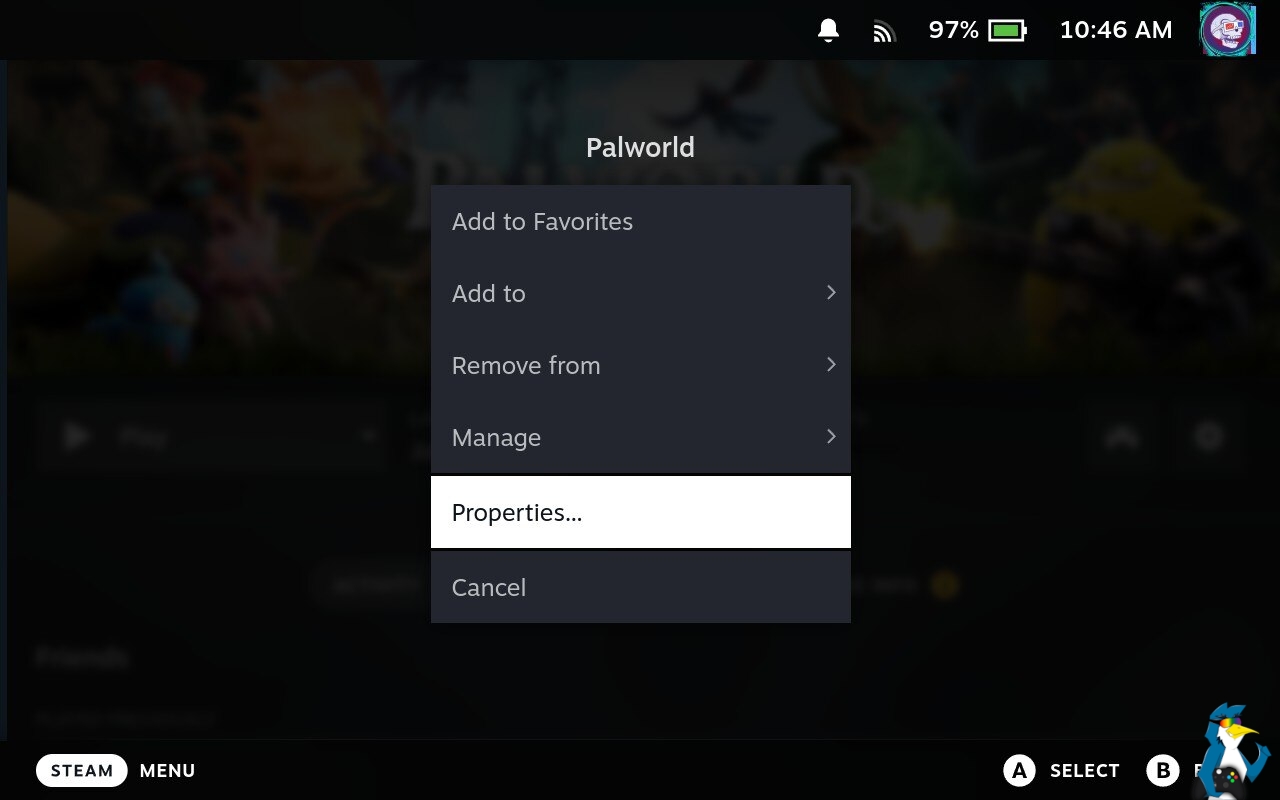
Within the Properties menu, select “Compatibility.” Check the box labeled “Force the use of a specific Steam Play compatibility tool.” This action will reveal a drop-down menu, allowing selection of any available Proton version.
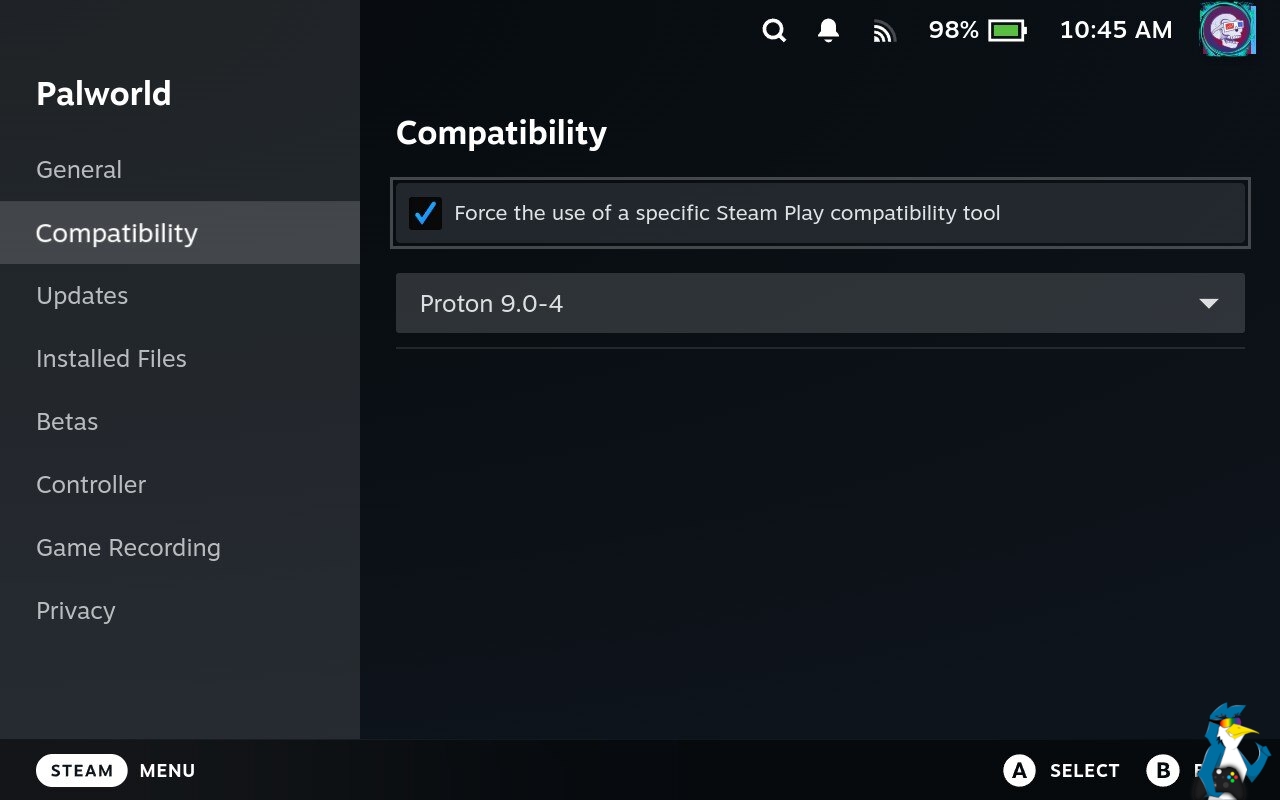
To revert to the Proton version automatically assigned by Valve for a game, simply uncheck the “Force the use of a specific Steam Play compatibility tool” box.
Desktop Linux
For Desktop Linux users, right-click on a game in the Steam Library. Proceed to “Properties,” then “Compatibility.” Tick the box that states “Force the use of a specific Steam Play compatibility tool,” and then choose a Proton version from the appearing drop-down menu.


To revert to the Proton version automatically assigned by Valve for a game, simply uncheck the “Force the use of a specific Steam Play compatibility tool” box.
A video demonstration for Desktop Linux is also available:
That completes the process for adjusting Proton versions. Enjoy gaming!
